A project in the Builder represents one client website or one brand. Each project has its own brand identity, keyword targets, and CMS connection. Most users only ever need one project, but agencies can run dozens.
How to start one
The journey
1
Click "New project"
Top right of the dashboard, or from the empty state on a fresh workspace.
2
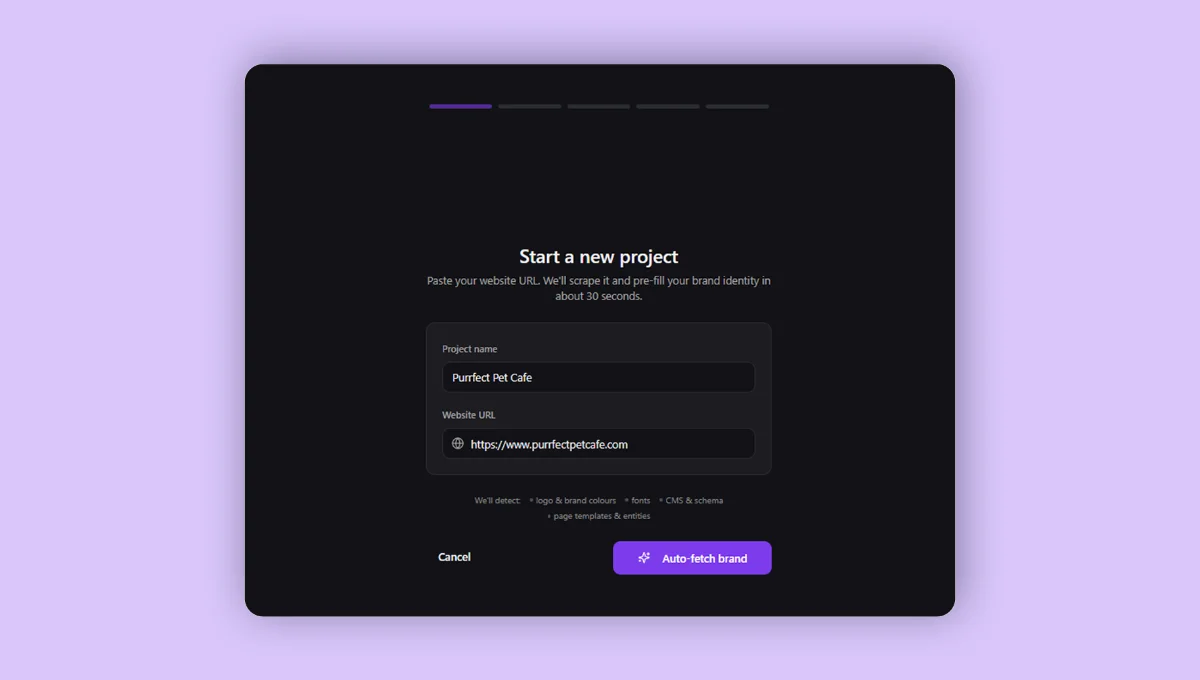
Enter the basics
Project name and the website URL you're working on. That's all you need to start. We'll scrape the rest.
3
Brand autofetch runs
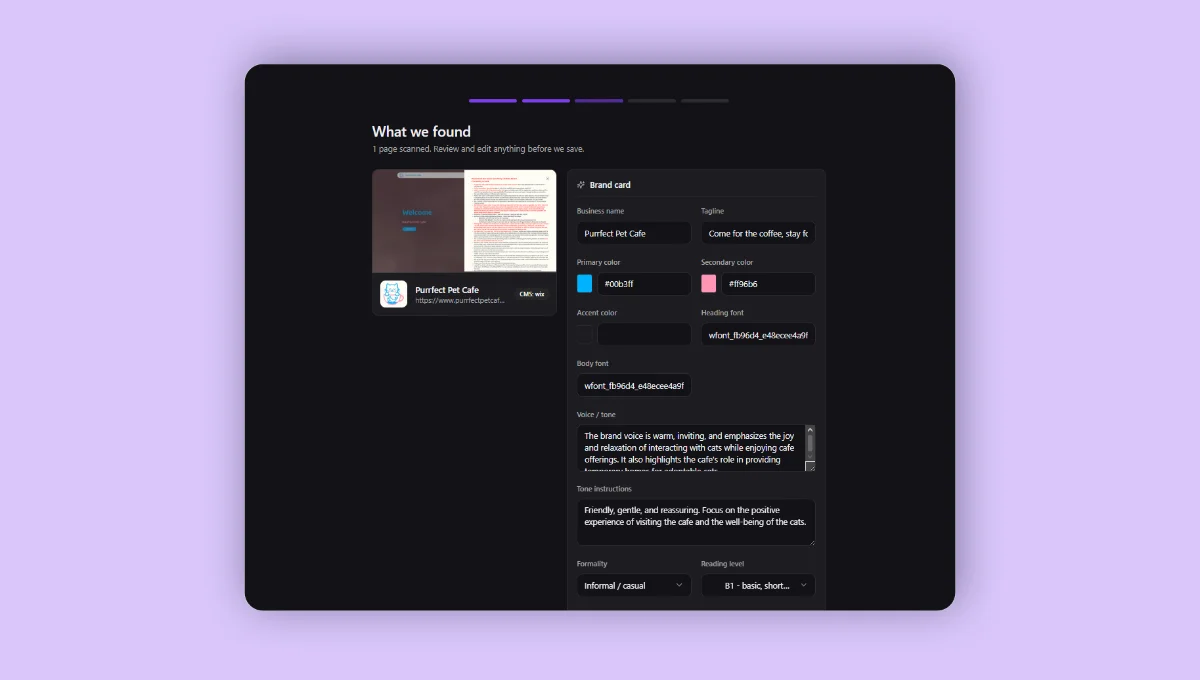
The Builder visits your site, extracts your brand voice, tone, key differentiators, and color palette. This usually takes 30 seconds. You'll be able to edit anything that's wrong.
4
Review and edit the brand card
Adjust the brand voice, audience, or differentiators if needed. This is what the AI will use to write in your voice.
5
Optional: seed from your sitemap
If you click "Use sitemap", we'll pull your existing URLs as a starting point for finding keyword opportunities.
6
Generate your first articles
The confirm screen offers to generate 10 article suggestions for you to choose from. You can also skip this and start manually.
Setup is resumable
Closing the tab does not lose progress. The next time you sign in, you'll see a "Setup pending" badge next to the project and jump back to where you left off.
Deep scan (optional)
For larger or more complex sites, you can opt into a deep scan during onboarding. We'll discover up to 200 URLs from your domain and analyze them to surface richer keyword opportunities. This takes 5 to 10 minutes and is limited to once per project per day.