
Campaigns help you organize content into themed groups. Instead of one giant pile of articles, you can run a "Plumbers by city" campaign alongside a "Software alternatives" campaign with separate templates, keyword lists, and publish targets.
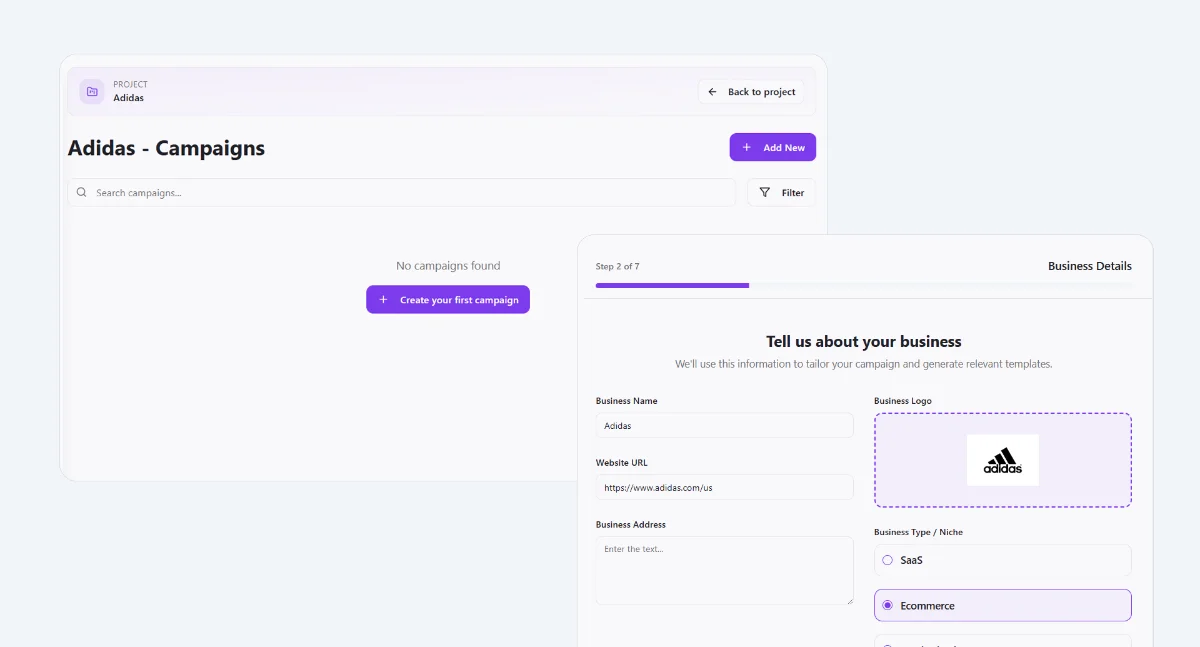
Where to start one
| Entry point | When to use it |
|---|---|
| Quick Actions on the dashboard | You know you want a new campaign and just want to name it and start. |
| From a project's campaigns tab | You want the campaign scoped to one specific project. |
| From the Keyword Mapper | You've already picked title opportunities and want them grouped into a fresh campaign. |
Naming it, then getting content in
Click "New campaign" and give it a clear name, use "Plumbing services by city" or "vs Competitors", not "Campaign 1". You land on Campaign Detail, where there are two ways to fill it with content:
Upload your own data
Best when you already have a list, spreadsheet export, or CRM data, cities, products, competitors, whatever your pages are about.
Make from scratch
Best when you don't have a dataset yet and want Builder to find the opportunities for you.
A campaign can run hundreds or thousands of articles. We've seen one campaign produce 12,000 city-based service pages. Use one campaign per keyword pattern, not per individual article.
Key things to know
- One campaign, one pattern. Keep it to a single keyword pattern and template, "Plumbers by city" not "Plumbers by city and also blog posts", so the template stays simple and every row still makes sense.
- Renaming is safe. Changing a campaign's name doesn't touch any URLs or published pages already generated from it.
- Deleting a campaign keeps its pages. Published pages stay live by default; deleting only removes the campaign container and its unpublished drafts.
- The template comes after. You can create a campaign before a template exists, Builder prompts you to build or pick one the first time you try to generate.
Common scenarios
| Situation | What to do |
|---|---|
| You're not sure which entry point to use | Start from a project's Campaigns tab if the campaign belongs to one site; use Quick Actions only for a fast, unscoped test. |
| You picked keywords in the Keyword Mapper first | Use the "From the Keyword Mapper" entry point so the selection carries straight into the new campaign instead of re-picking it. |
| You need to split one big campaign into two | Create the second campaign, then move the relevant keywords over from Campaign Detail. Existing published pages stay where they are. |
| The campaign is scoped to the wrong project | Campaigns can't be moved between projects; create a new one under the correct project and migrate the keyword list. |